Images, SVG and draw.io
| Format | How | Notes |
|---|---|---|
| HTML page | render, finalize |
Standalone: no external requests. Diagram, Cost and Well-Architected tabs. |
| SVG | render --svg, finalize, or Export ▾ in the page |
The page export is a dual-theme SVG (light, switching to dark when the viewer prefers it). Viewer state (focus, dimming, route, passport) is stripped. |
| PNG | render --png, finalize, or Export ▾ (also JPEG, WebP, copy to clipboard) |
Needs Chrome/Chromium. |
| draw.io | export, render --drawio, finalize, or Export ▾ → Download draw.io (.drawio) |
Uses draw.io's own Azure icons. See below. |
| JSON receipt | finalize |
Hashes and check results; see Quality gates. |
draw.io
The file opens in draw.io / diagrams.net (desktop, web, or the VS Code extension) and is fully editable.
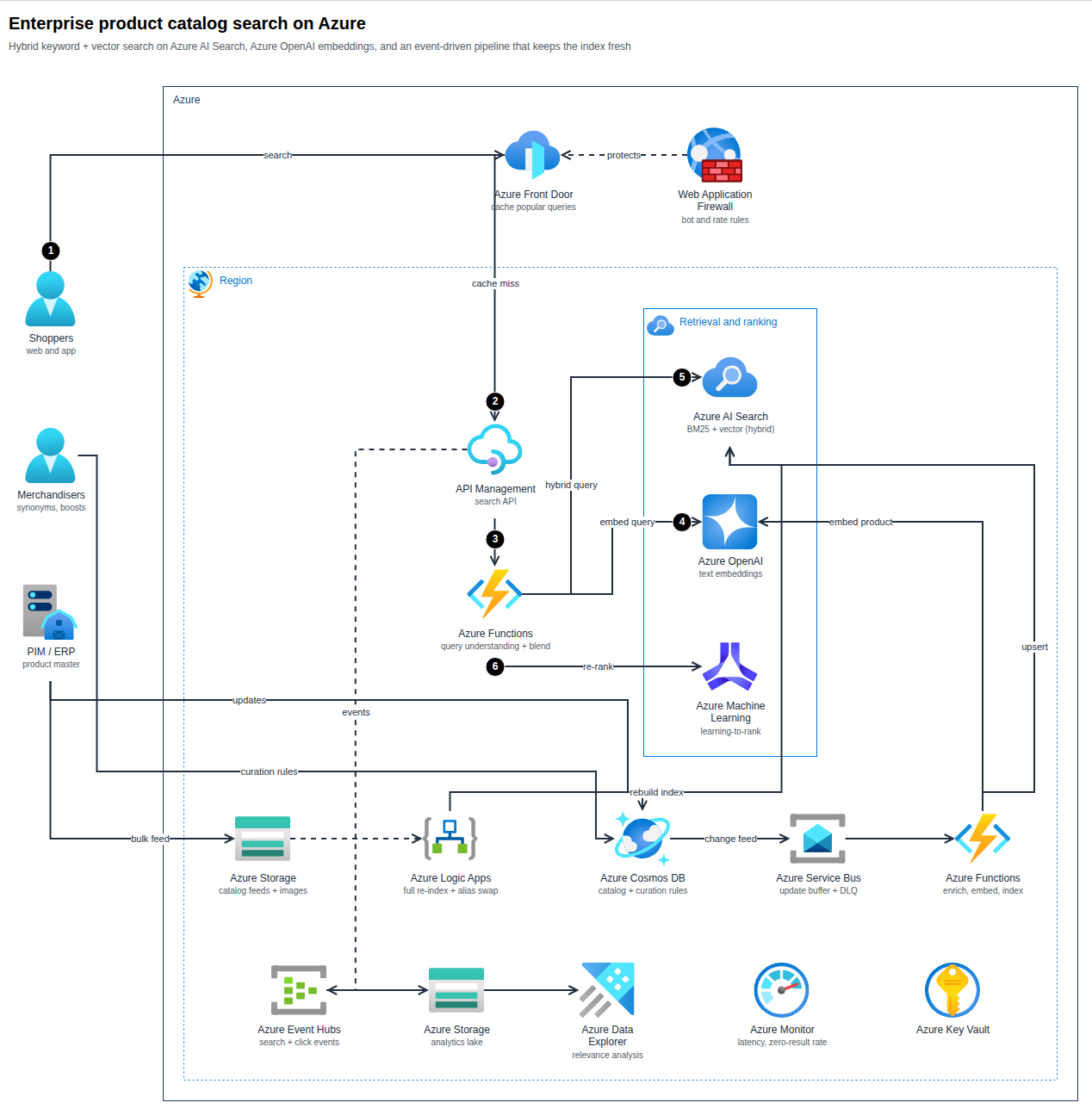
What maps to what:
| archify-azure | draw.io |
|---|---|
| Service and general icons | draw.io's built-in Azure library: image;aspect=fixed;…image=img/lib/azure2/<category>/<Icon>.svg |
| Azure, subscription, region, resource group, VNet, subnets, NSG… | Styled container cells with the group's colour and dash and the official group icon in the corner |
| Nested groups | Real containers: move a group and its children follow |
| Edges | Attached to their icons, with the original waypoints and exit/entry points, open arrowheads, dashed style |
| Numbered callouts | Black numbered circles; the step description is the tooltip |
| Sequence diagram | Icons, dashed lifelines, message edges, alt/loop/par frames and notes |
Notes on fidelity
- Layout is the archify-azure layout. draw.io may re-route an edge a little when you drag things.
- An icon without a draw.io equivalent is embedded as the official SVG instead of failing;
exporttells you how many. - Edge labels are real edge labels (they follow the edge); callout circles are separate shapes.
- The export is validated before it is written (unique ids, every reference resolves, every
img/lib/azure2/…icon exists in draw.io's library).
Presentation and documents
- Use
--theme darkfor slides and keeplightfor documents. Training and certification diagrams should use light. - For a portrait page (Word, blogs) prefer
columnlayouts at the root. - PNG size follows the diagram; scale it in your document rather than re-flowing the spec.
Icon licensing
Icons are © Microsoft Corporation. Use them to depict Azure architecture, do not alter them, and do not imply Microsoft endorsement. Rendered pages embed the icons they use; check the current Microsoft terms for the Azure Architecture Icons before publishing diagrams widely.