Testing Guide¶
A click-through walkthrough for testing the BULWARK dashboard end to end,
with a screenshot of each screen and what to check on it. This complements
the User Guide (which is API/CLI-first) -- this doc is
UI-first, for anyone verifying a deployment (your own Cloud Run instance,
or npm run dev against a local server) actually works before a demo or a
release.
Screenshots below are from the live Cloud Run deployment, taken against
the current main branch's frontend -- so the counts, tabs, and copy you
see here are what a fresh deployment should show too, not a stale mockup.
Before you start¶
- A running BULWARK instance -- either the deployed Cloud Run URL, or
npm run dev(frontend) againstuvicorn bulwark.main:app --reload(backend) locally. See Setup Guide for both. - The UI password, if the deployment sets
BULWARK_UI_PASSWORD. Local dev with no password set skips the login screen entirely. - Seeded data, so the screens aren't empty --
python scripts/seed_demo_data.pypopulates three vendors (Cloudy SaaS Inc, Umbrella Corp, Sibling Analytics Inc) with findings, a concentration risk, a questionnaire, and a DLQ entry, without needing live Gemini credentials. - If the dashboard shows "Not connected -- check Connection settings"
on first load: open Connection (bottom of the sidebar) and set
Base URL to your API's origin and X-API-Key to
demo-key(or whateverBULWARK_API_KEYSyou configured), then Save & reconnect. A production build normally bakes this in at build time (VITE_DEFAULT_BASE_URL, set bydeploy/deploy_frontend.sh) so you shouldn't need to touch this on a real deployment -- but it's the first thing to check if every page looks empty.
1. Log in¶
If BULWARK_UI_PASSWORD is set, the app opens on a password screen before
anything else. Log in with that password.
Check: a wrong password shows an inline error, not a silent failure; a correct one lands you on the Dashboard.
2. Dashboard¶
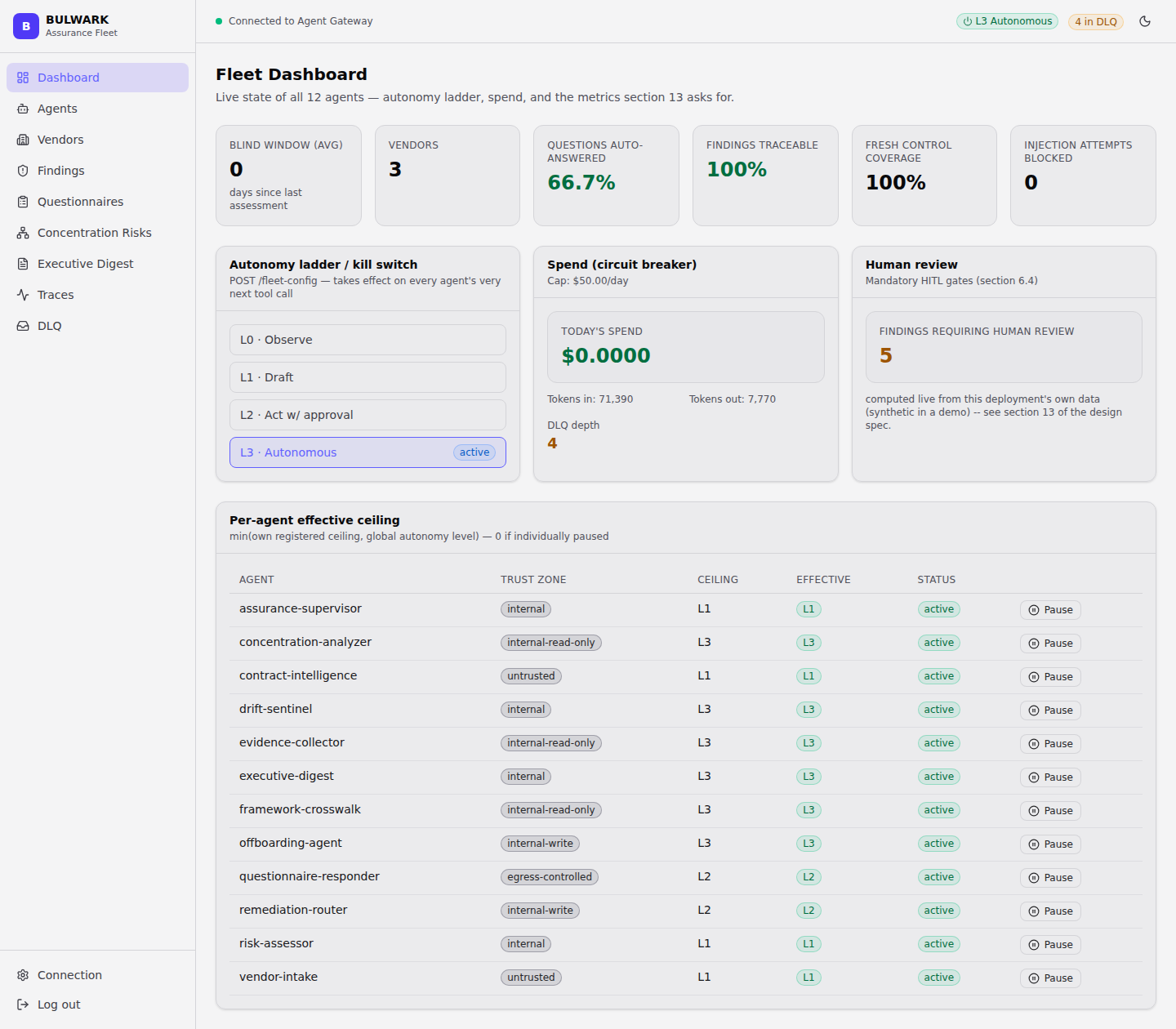
Check:
- Top bar reads "Connected to Agent Gateway" (green dot), not "Not
connected."
- 12 agents listed in the per-agent table at the bottom, each with a
Pause button next to it.
- Autonomy ladder card shows L3 · Autonomous highlighted as
active.
- If any events are stuck, the "N in DLQ" badge (top right) is
amber and clickable -- clicking it should land you on the DLQ page
(see step 12). Zero DLQ entries means no badge at all, which is also
correct.
- "Findings requiring human review" and "DLQ depth" tiles are links --
click each and confirm they route to Findings / DLQ respectively,
filtered where applicable.
3. Agents¶
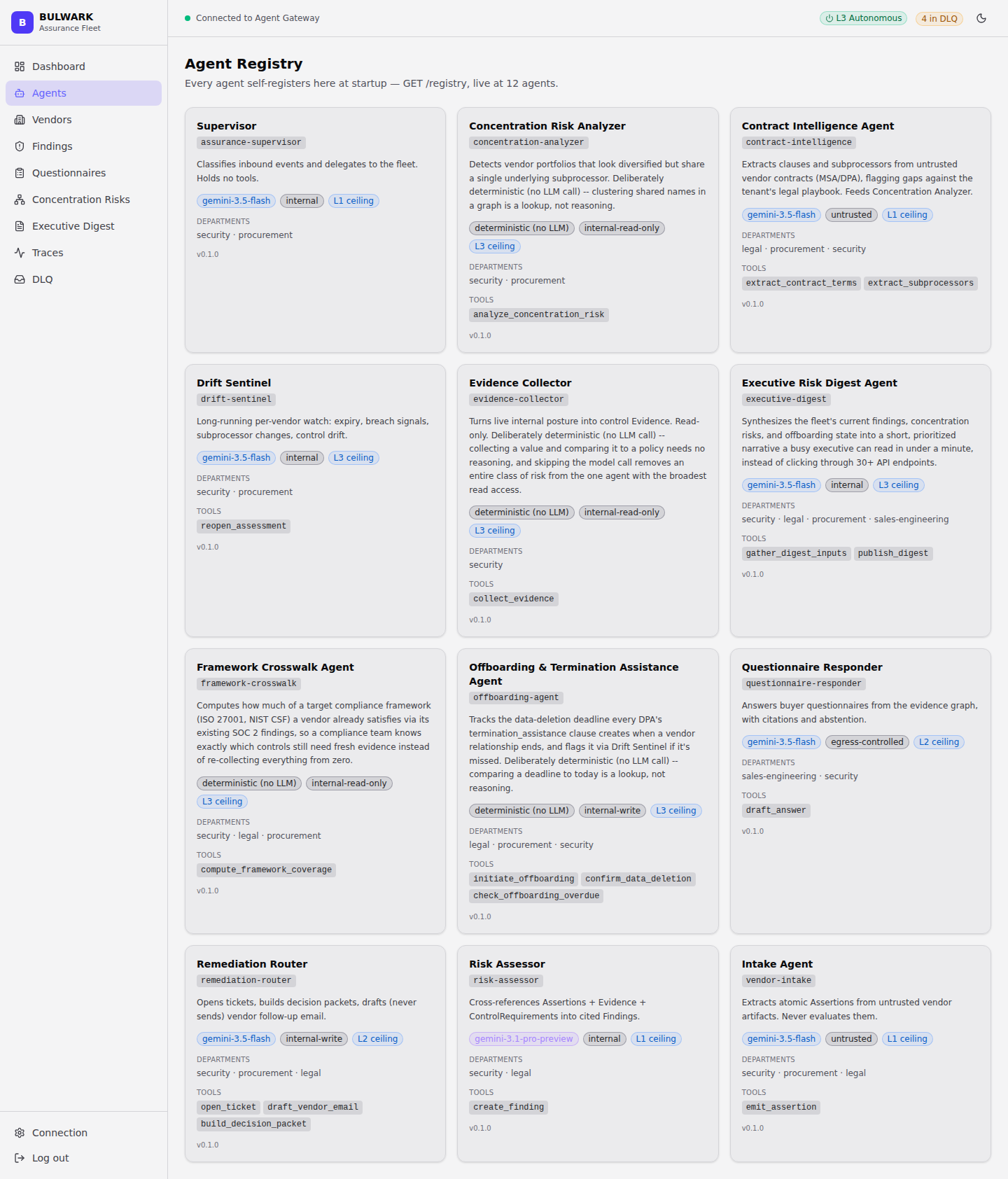
Check: every registered agent shows its trust zone, model (or "no model" for the four deterministic agents), and autonomy ceiling. This is the same 12-row set as the Dashboard's bottom table, just full-page.
4. Vendors¶
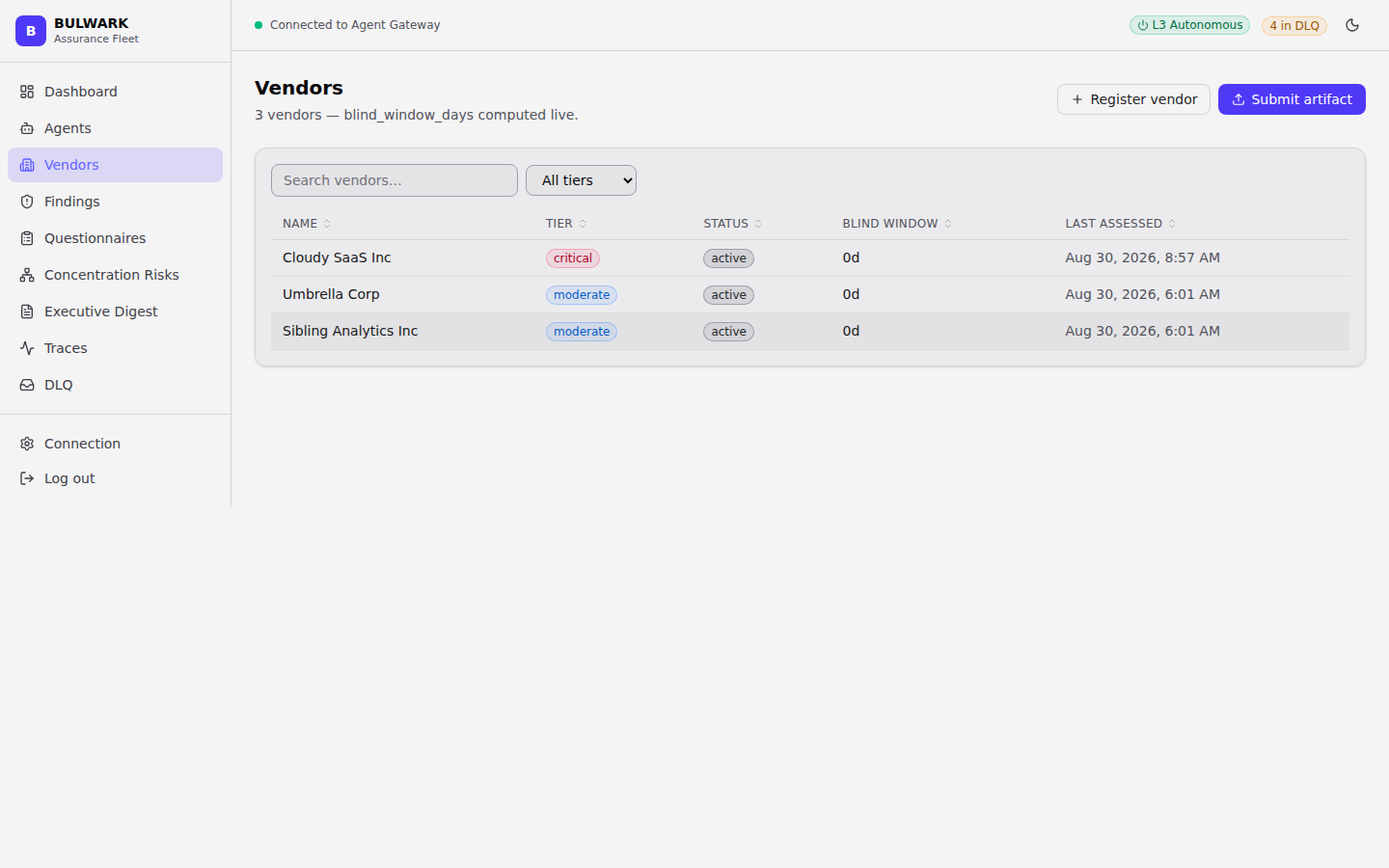
Check:
- Vendor count in the page subtitle matches the table's row count.
- Tier badges (critical/moderate/low) and Blind window column
are populated, not blank.
- The Search vendors... box and tier filter actually filter the
table -- type a partial vendor name and confirm the row count drops.
- Submit artifact (top right, primary button) opens the upload dialog
-- this is the one flow that needs live Gemini credentials to complete;
see User Guide §1
for exact inputs if you're testing a real upload.
5. Vendor detail -- Findings tab¶
Click into any vendor row.
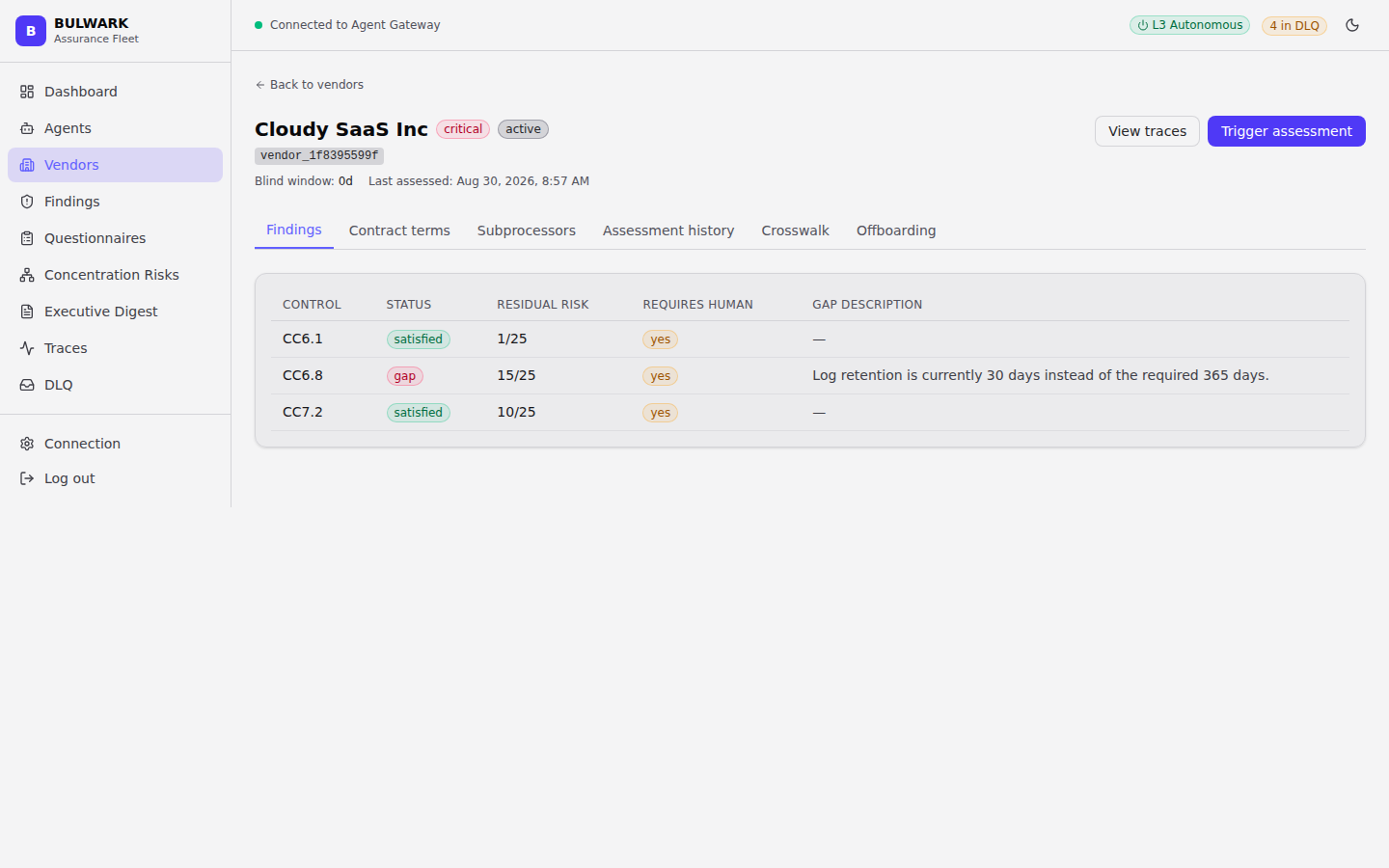
Check: six tabs across the top -- Findings, Contract terms, Subprocessors, Assessment history, Crosswalk, Offboarding. Findings tab is the default. Each row shows a control id, status, residual risk, and (for gaps) a gap description in plain English, not a raw error string.
6. Vendor detail -- Contract terms¶
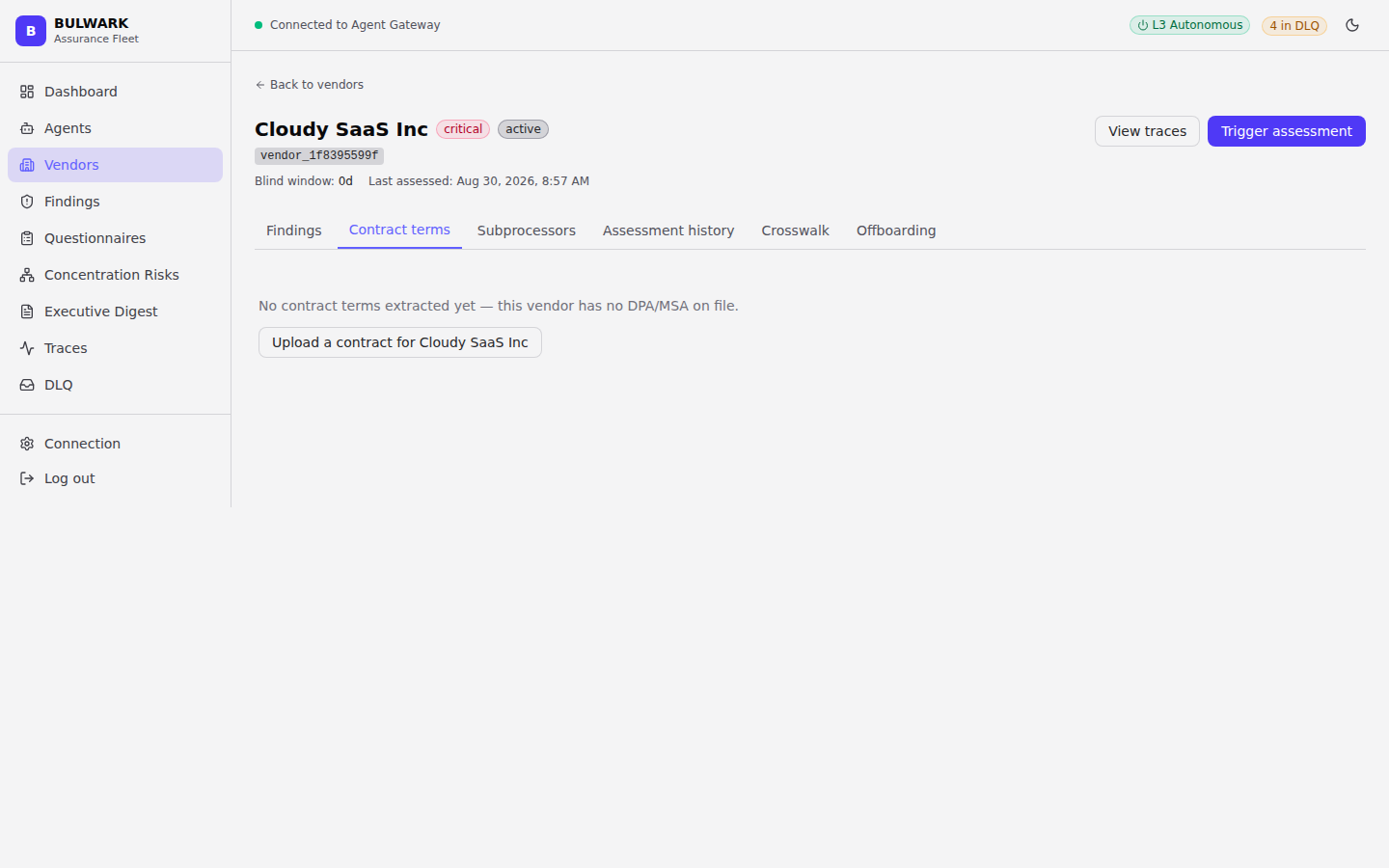
Check: populated only for vendors that have had a DPA/MSA processed by Contract Intelligence -- an empty state here for a vendor that's never had a contract uploaded is correct, not a bug.
7. Vendor detail -- Subprocessors¶
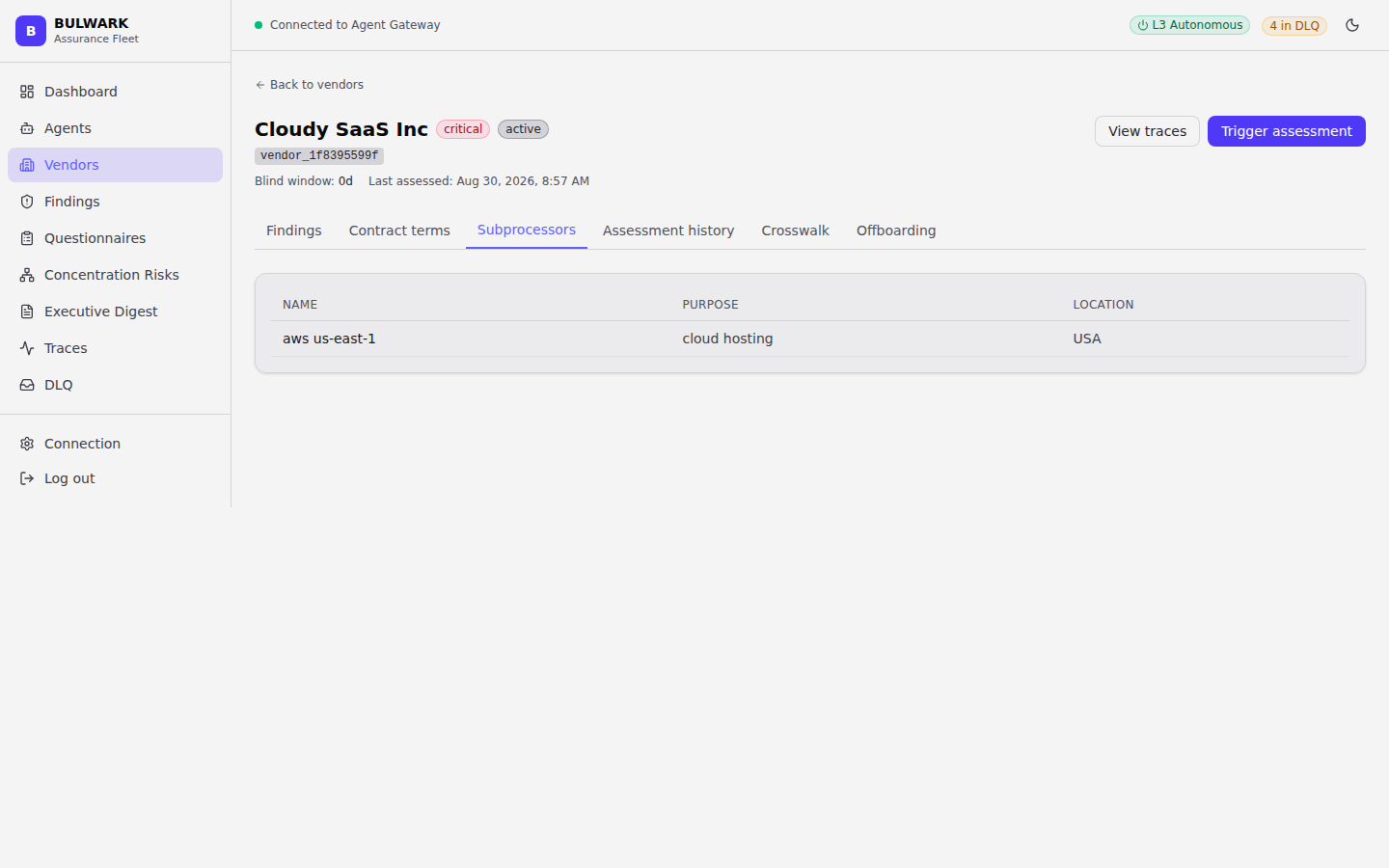
Check: this is the data Concentration Analyzer reads across every vendor's subprocessor list to find shared-dependency risk (step 9).
8. Vendor detail -- Assessment history¶
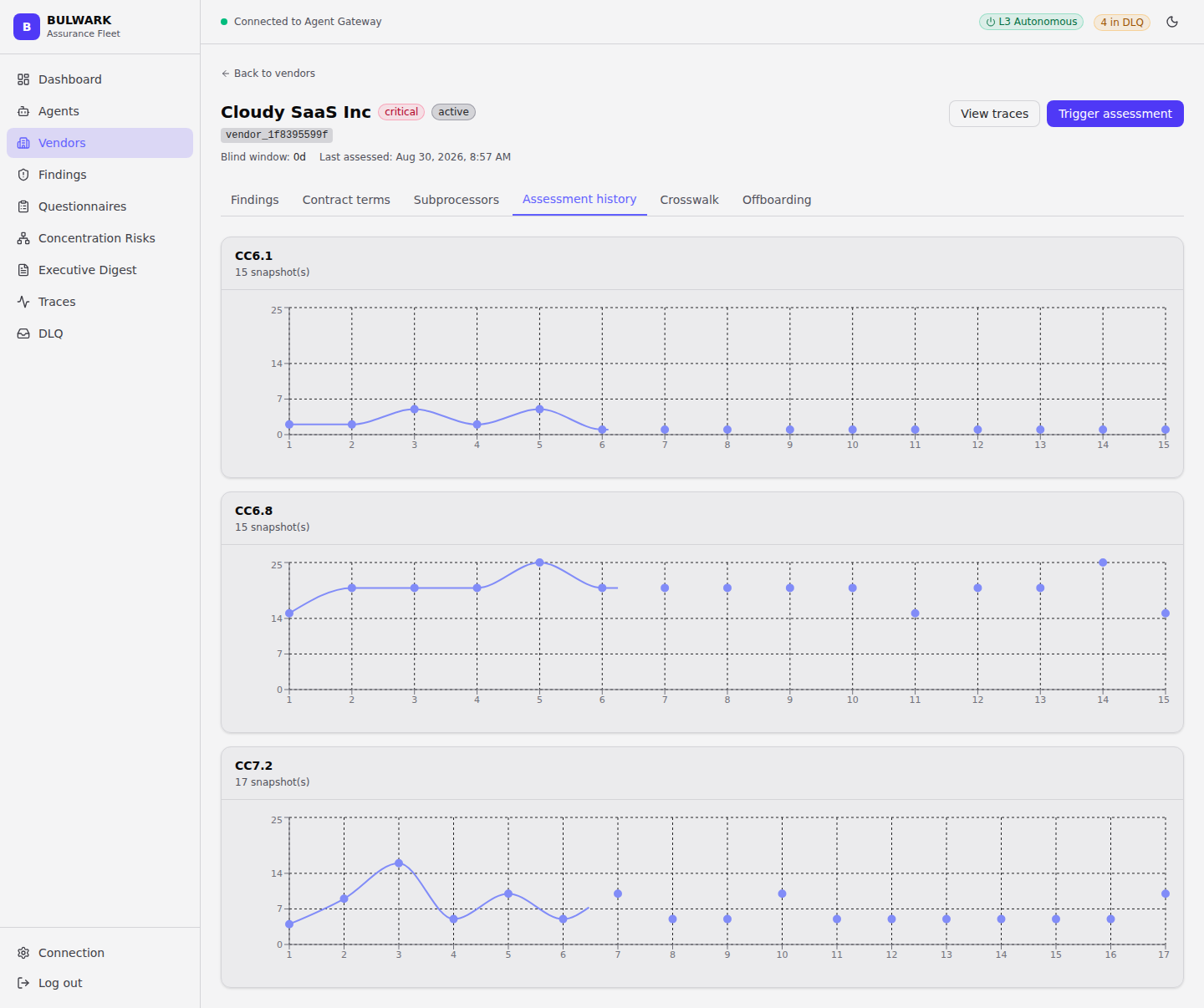
Check: one row per past reassessment, oldest first. This is what Drift
Sentinel's risk_trend_rising signal watches for a control getting worse
across reassessments, before it's a hard gap.
9. Vendor detail -- Crosswalk¶
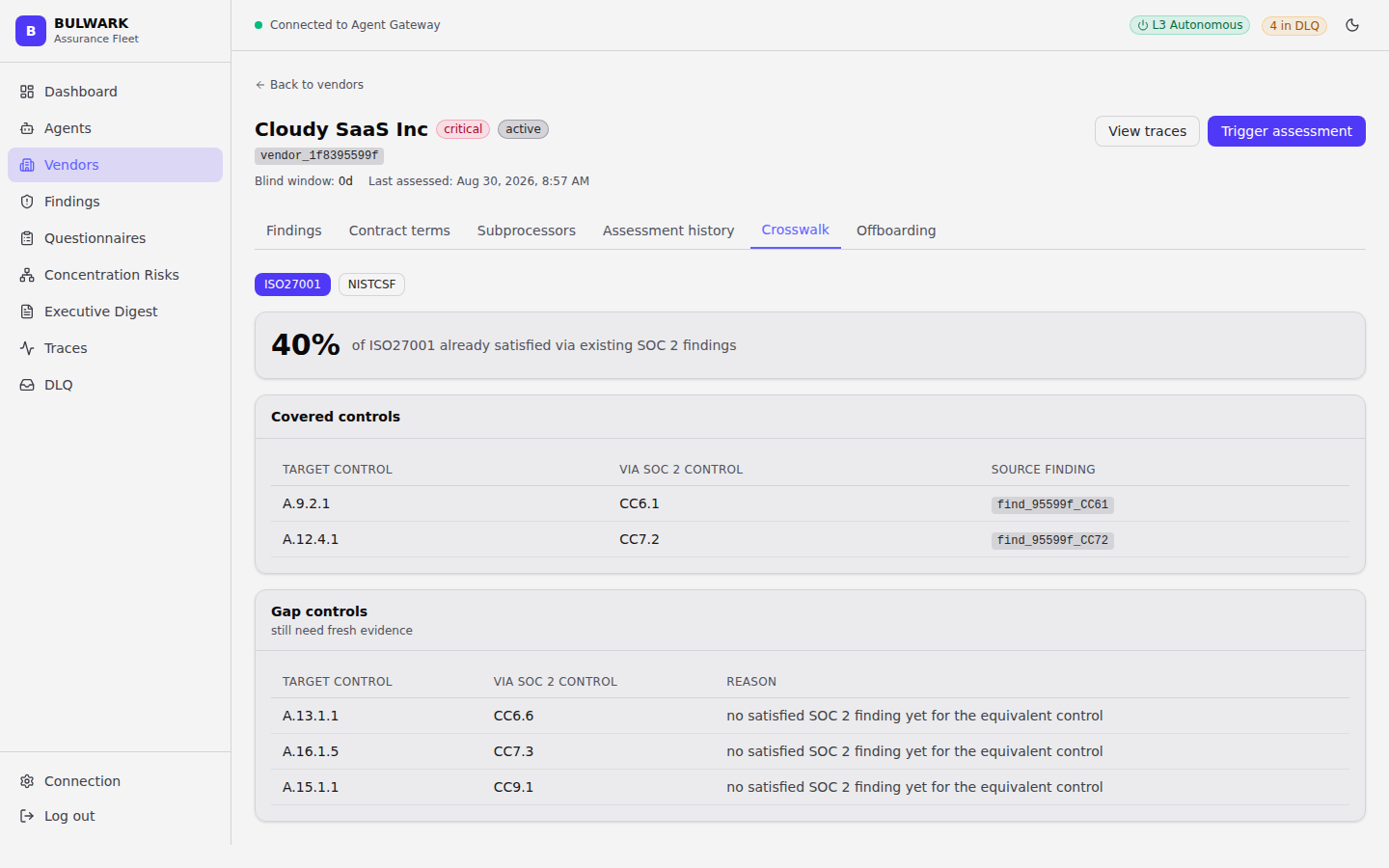
Check: a satisfied SOC 2 control should show its mapped ISO 27001 / NIST CSF equivalents as already-covered, without a separate evidence collection for those frameworks.
10. Vendor detail -- Offboarding¶
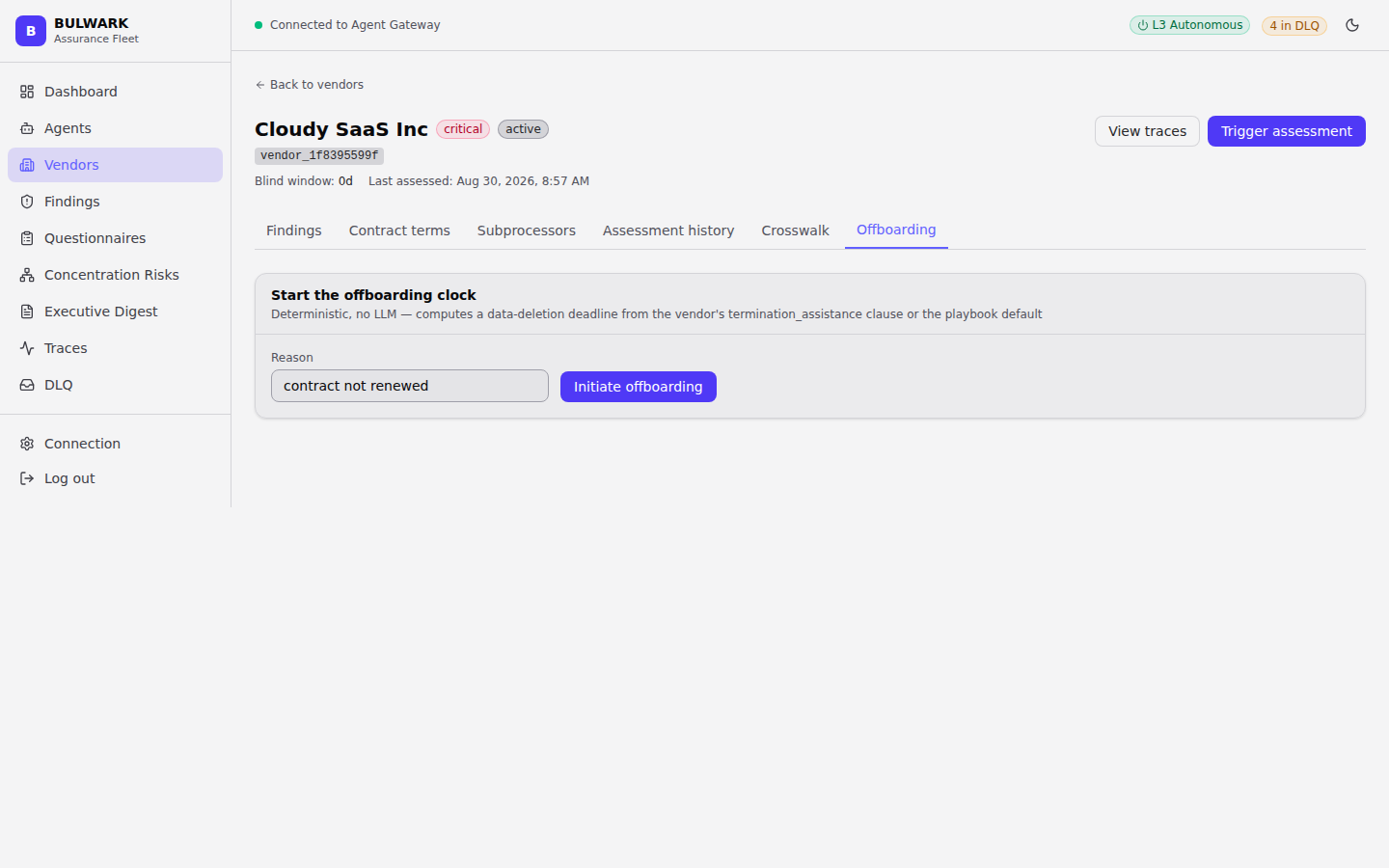
Check: for an active vendor with no offboarding in progress, this tab should say so plainly rather than showing an empty table with no explanation.
11. Findings (global)¶
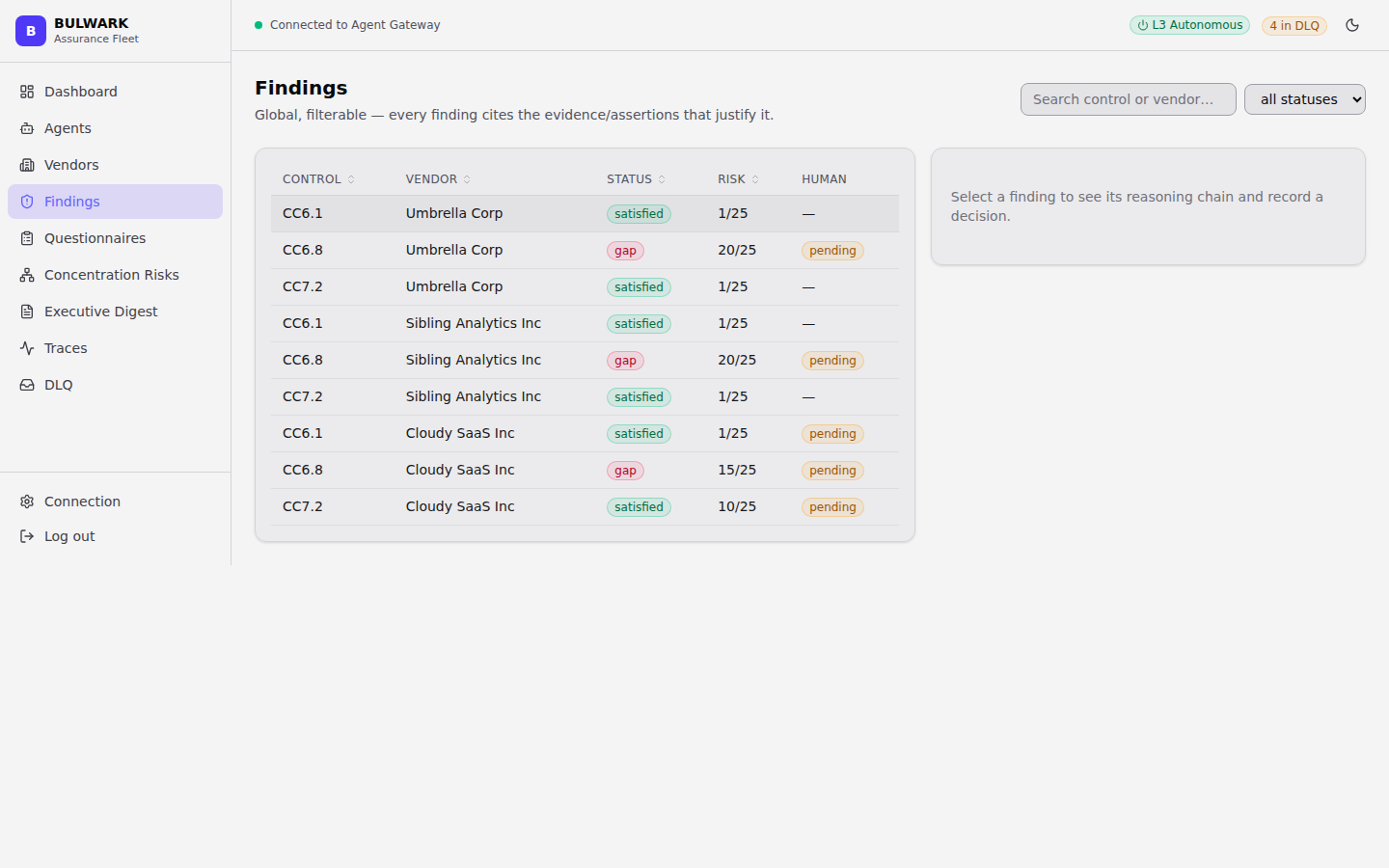
Check:
- Table is global across all vendors -- Vendor column shows vendor
names (a clickable link to that vendor's detail page), never a raw
vendor_xxxxx id.
- Search control or vendor... and the status dropdown filter the
table live.
- Click any row -- the right-hand panel should populate with that
finding's reasoning chain (see step 12) without a page navigation.
12. Finding detail + recording a decision¶
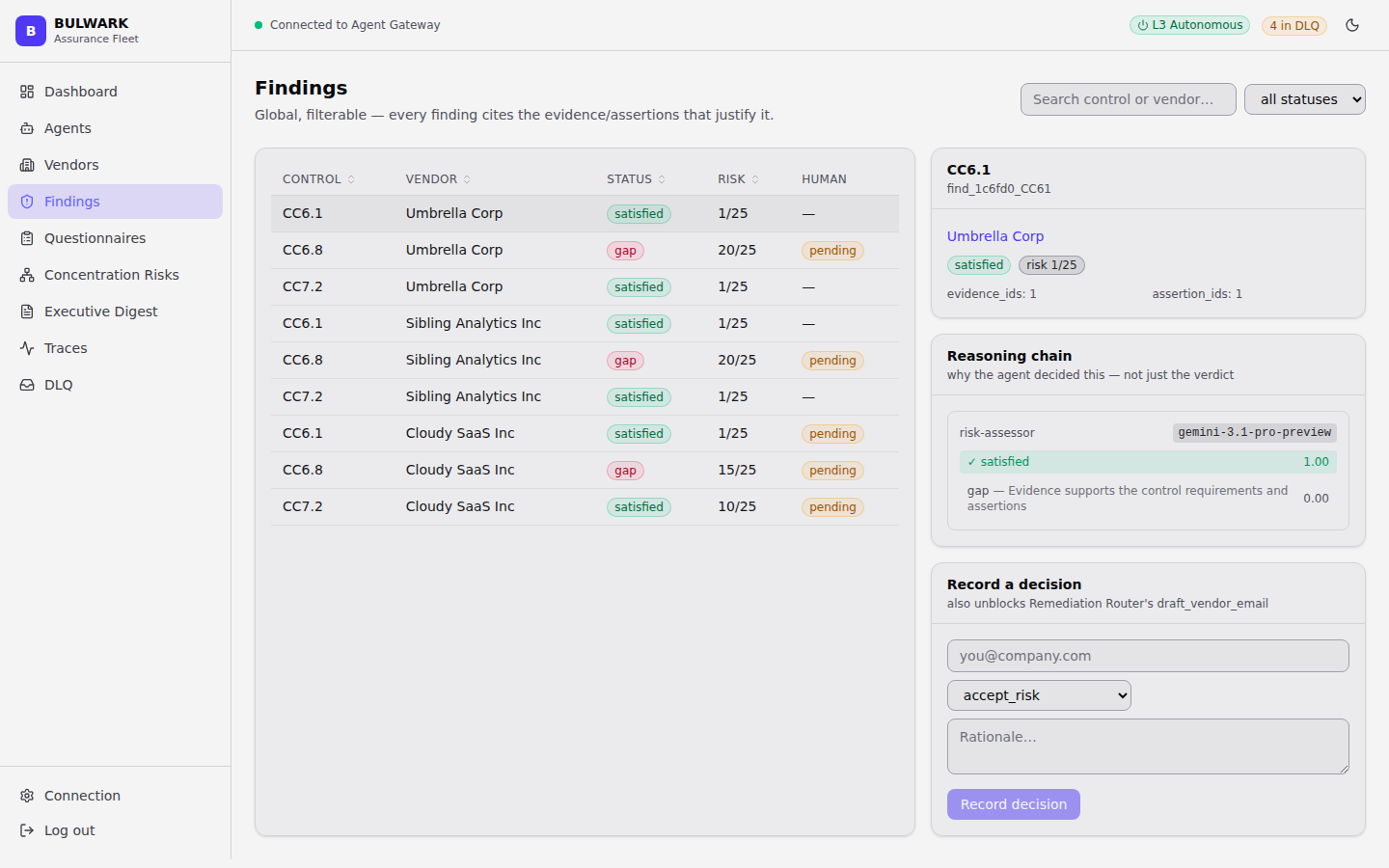
Check:
- Reasoning chain card shows the model used (e.g.
gemini-3.1-pro-preview for Risk Assessor's judgment calls), the
alternatives it weighed, and a score for each -- not just the final
verdict.
- Record a decision form is present for findings with human: pending
-- submitting it (email + decision type + rationale) should clear the
pending flag. Per the mandatory HITL gates, this form should always be
present for a critical-tier vendor's gap findings, never skippable.
13. Concentration Risks¶
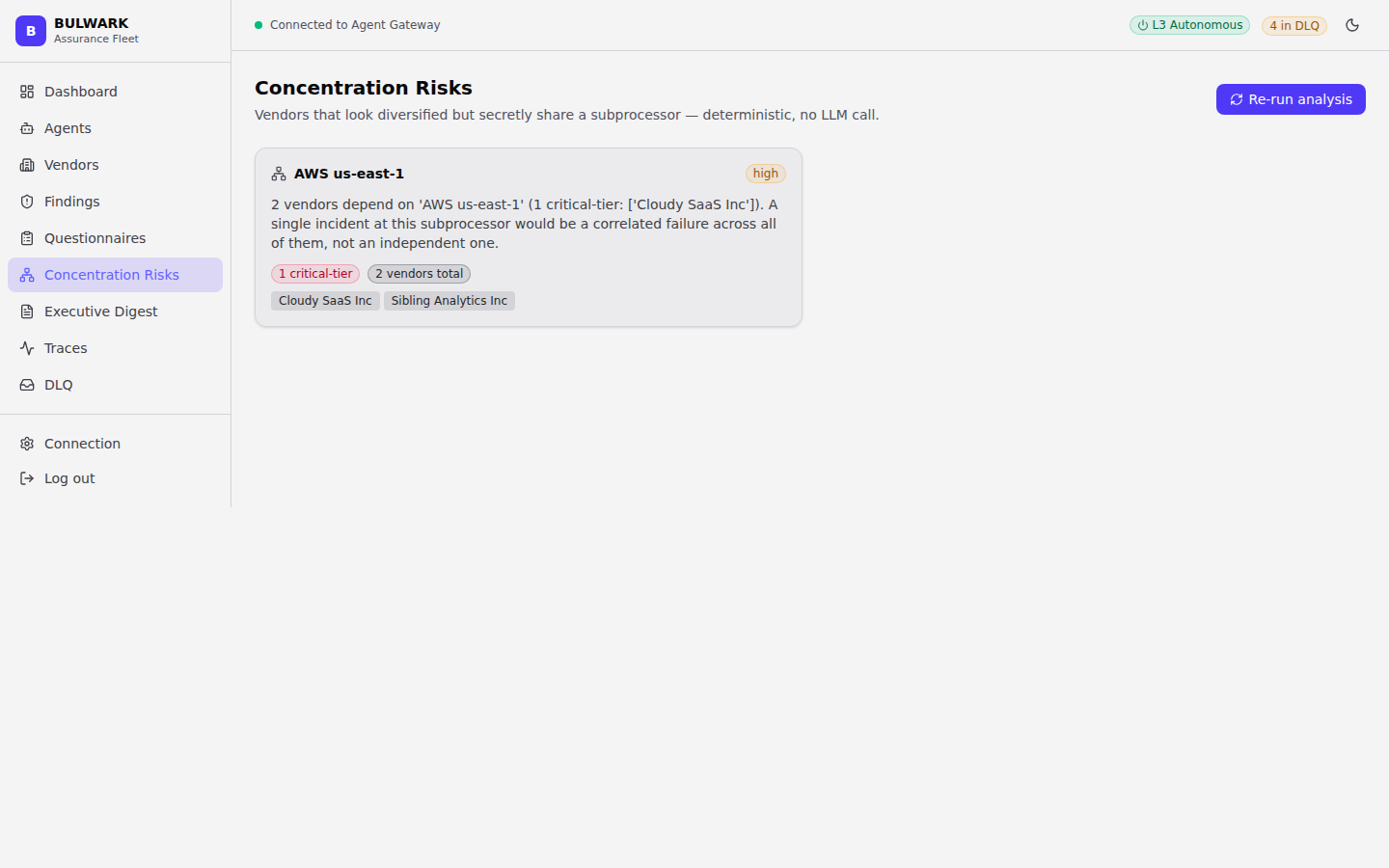
Check:
- Each card names a shared subprocessor, a risk tier (high/medium/
low), and the vendor tags that share it -- tags are clickable links
to each vendor's detail page.
- Re-run analysis re-scans the entire tenant's subprocessor graph
(not just new records) -- if you've just uploaded a new contract for a
vendor sharing an existing subprocessor, this button (or the automatic
re-run that already fires after a contract is processed) is what makes
it show up here.
14. Questionnaires¶
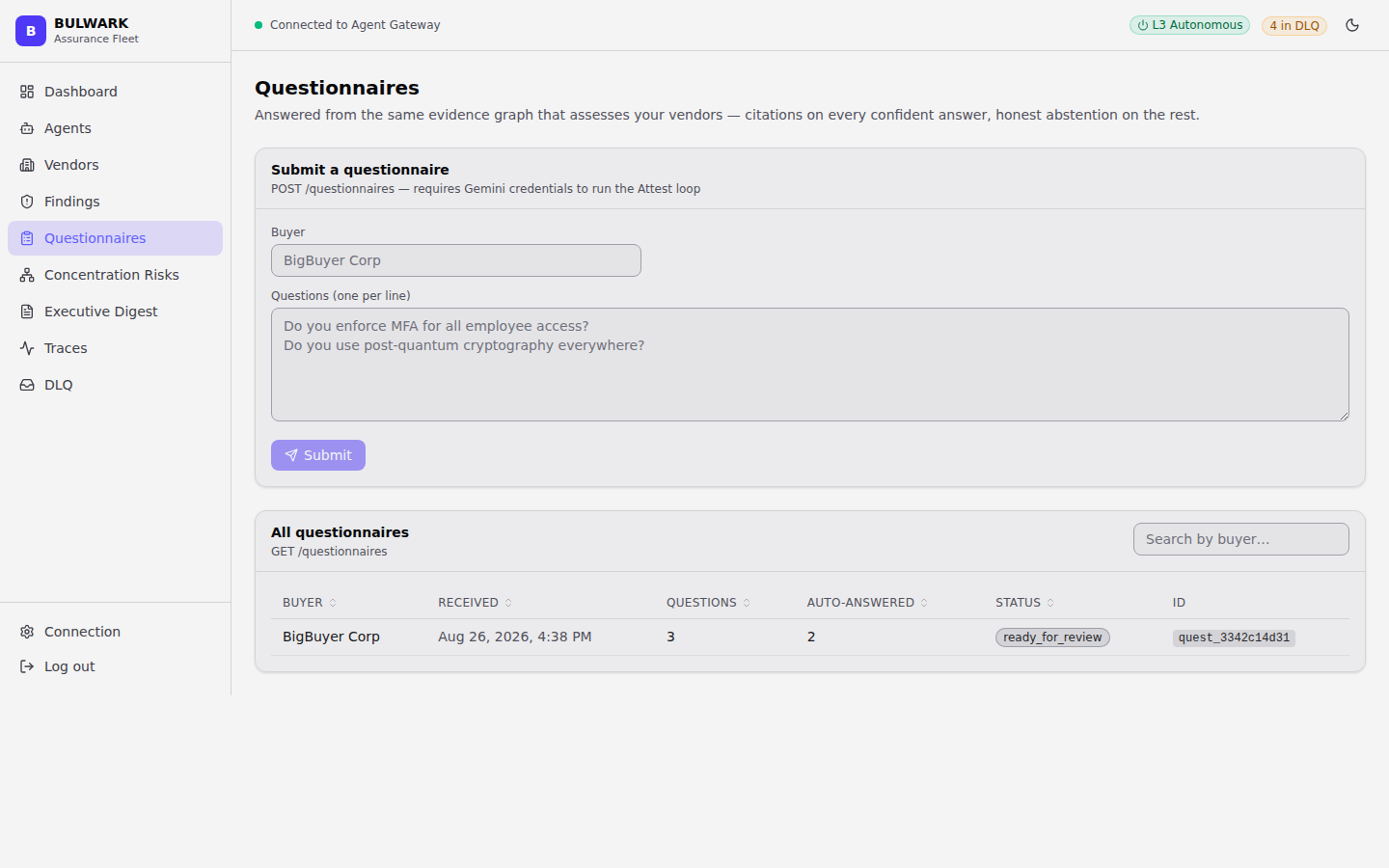
Check: - Submitting a questionnaire (buyer name + one question per line) needs live Gemini credentials -- expect a clear error, not a silent failure, if credentials aren't configured. - The table's Auto-answered column should be less than or equal to Questions -- the responder abstains honestly when it has no evidence, so 100% auto-answered isn't guaranteed and isn't a bug.
15. Executive Digest¶
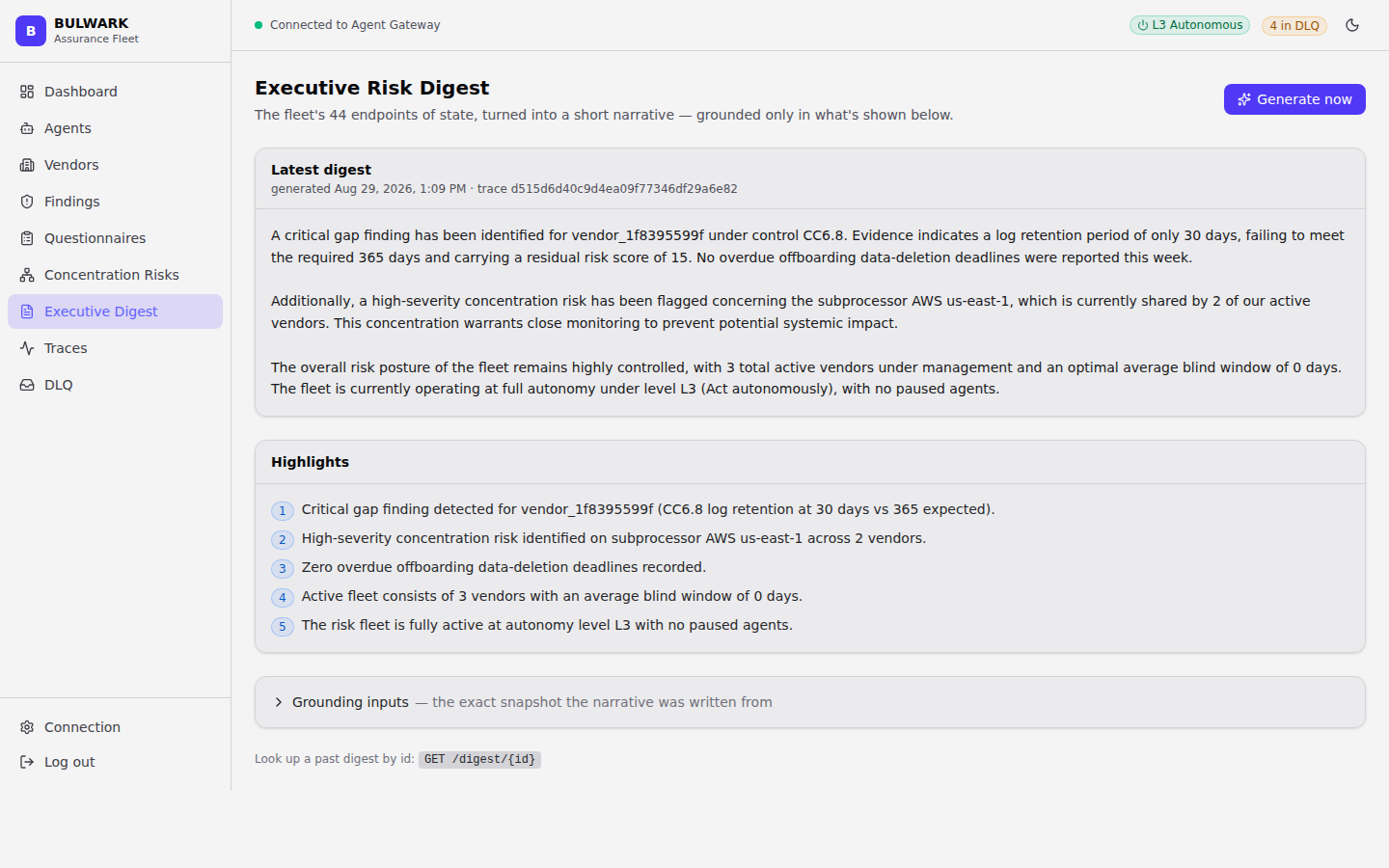
Check: narrative references vendors by name, never by raw
vendor_xxxxx id, and the generated-at timestamp is human-readable
(e.g. "Aug 30, 2026, 8:57 AM"), not a raw ISO string. This page needs
live Gemini credentials -- the narrative step is genuine model judgment,
not a template fill.
16. Traces¶
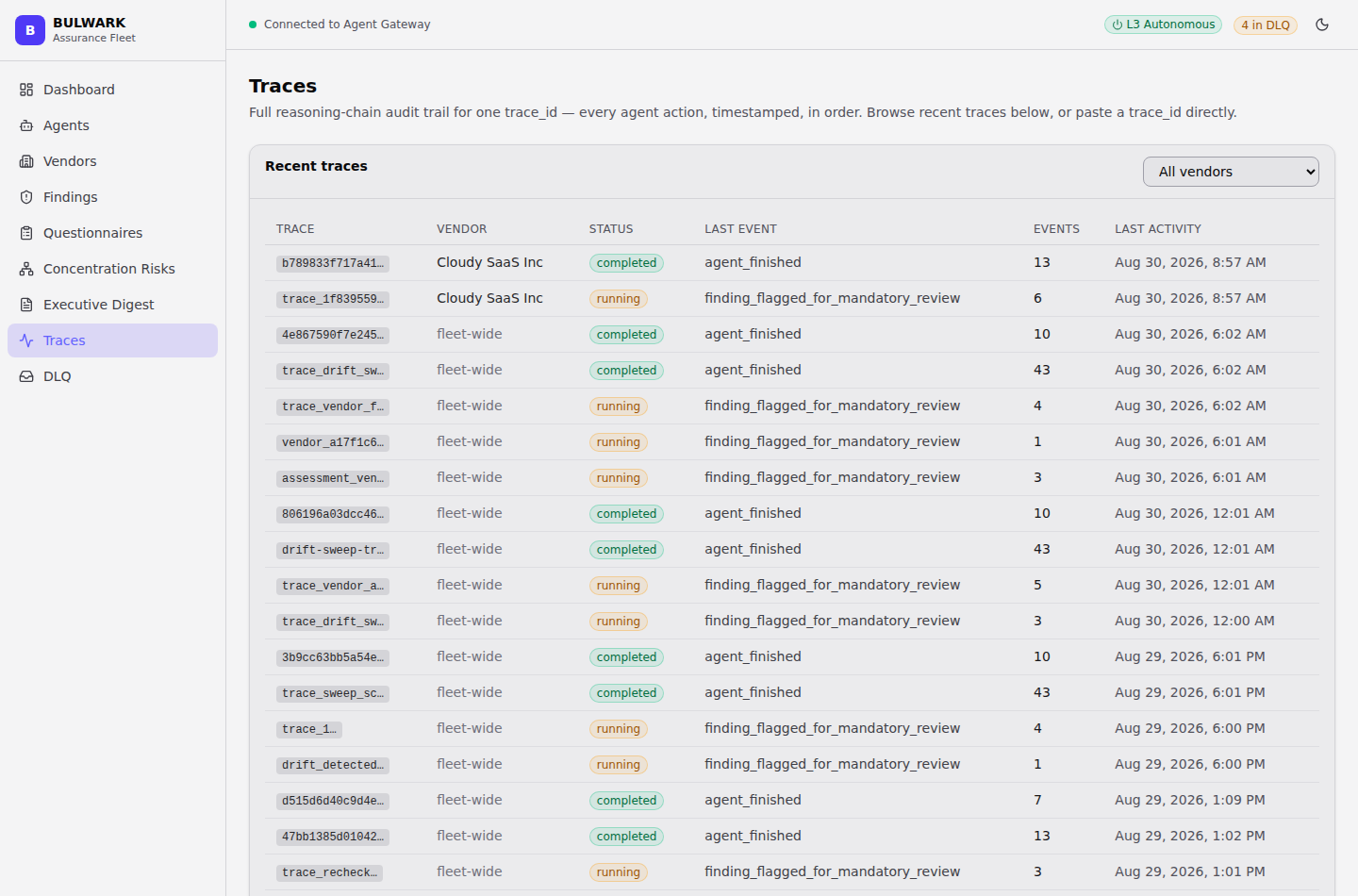
Check:
- Recent traces table is browsable without needing a trace_id in
hand -- this is the fix for the old workflow that required copy-pasting
a UUID from a curl response.
- The vendor dropdown (top right of the table) filters to just that
vendor's traces.
- Look up a trace_id directly still works for anyone who does have one
(e.g. from a finding-detail deep link).
- Clicking a row opens that trace's full reasoning-chain timeline,
timestamped, in order.
17. Dead-Letter Queue (DLQ)¶
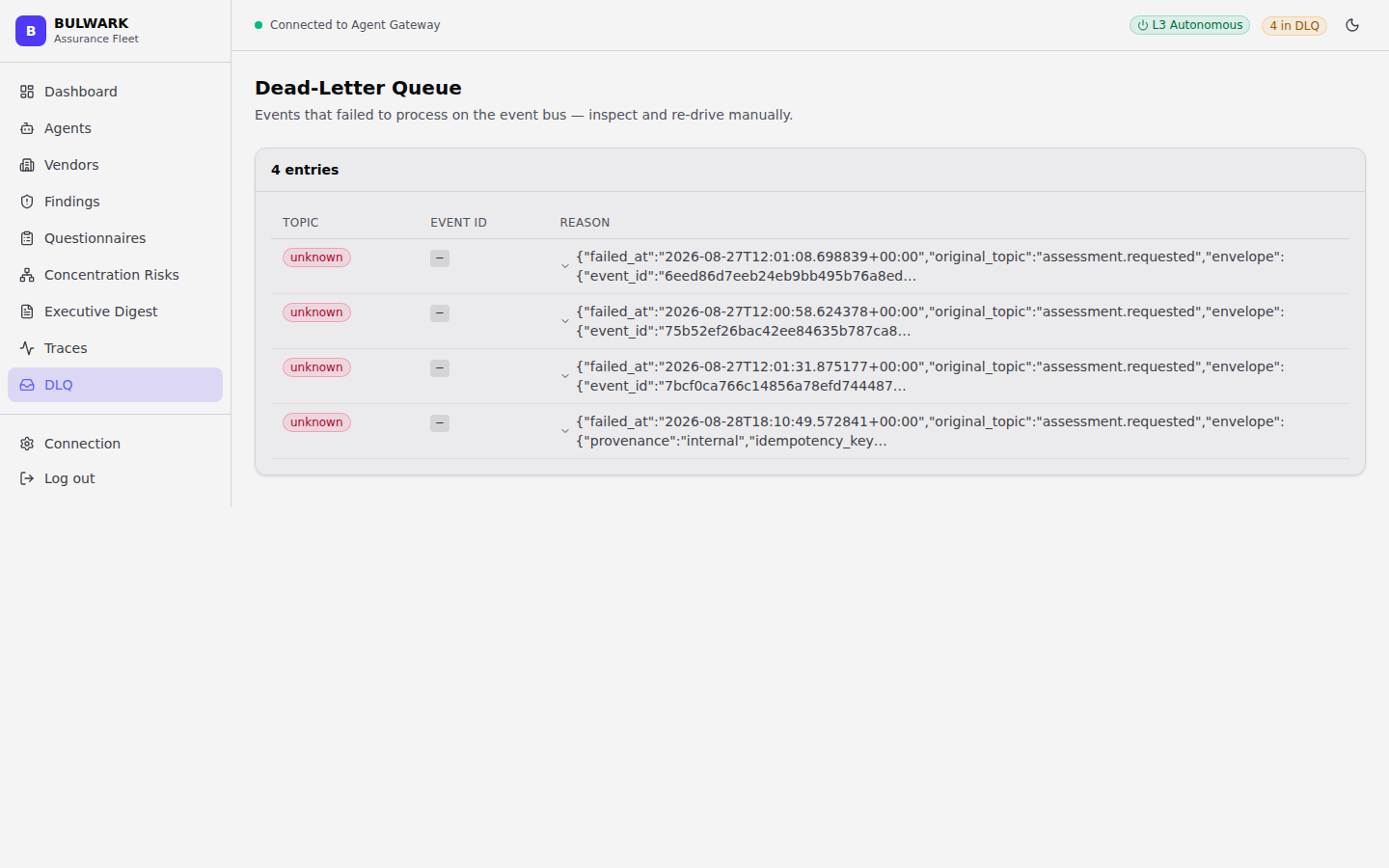
Check: - Long or multi-line failure reasons collapse to one line by default, with a chevron to expand -- confirm a raw traceback doesn't blow out the whole page by default. - Entry count in the header matches the "N in DLQ" badge you saw on the Dashboard. - An empty DLQ (0 entries) should say so plainly, not show a blank table.
18. Settings / Connection¶
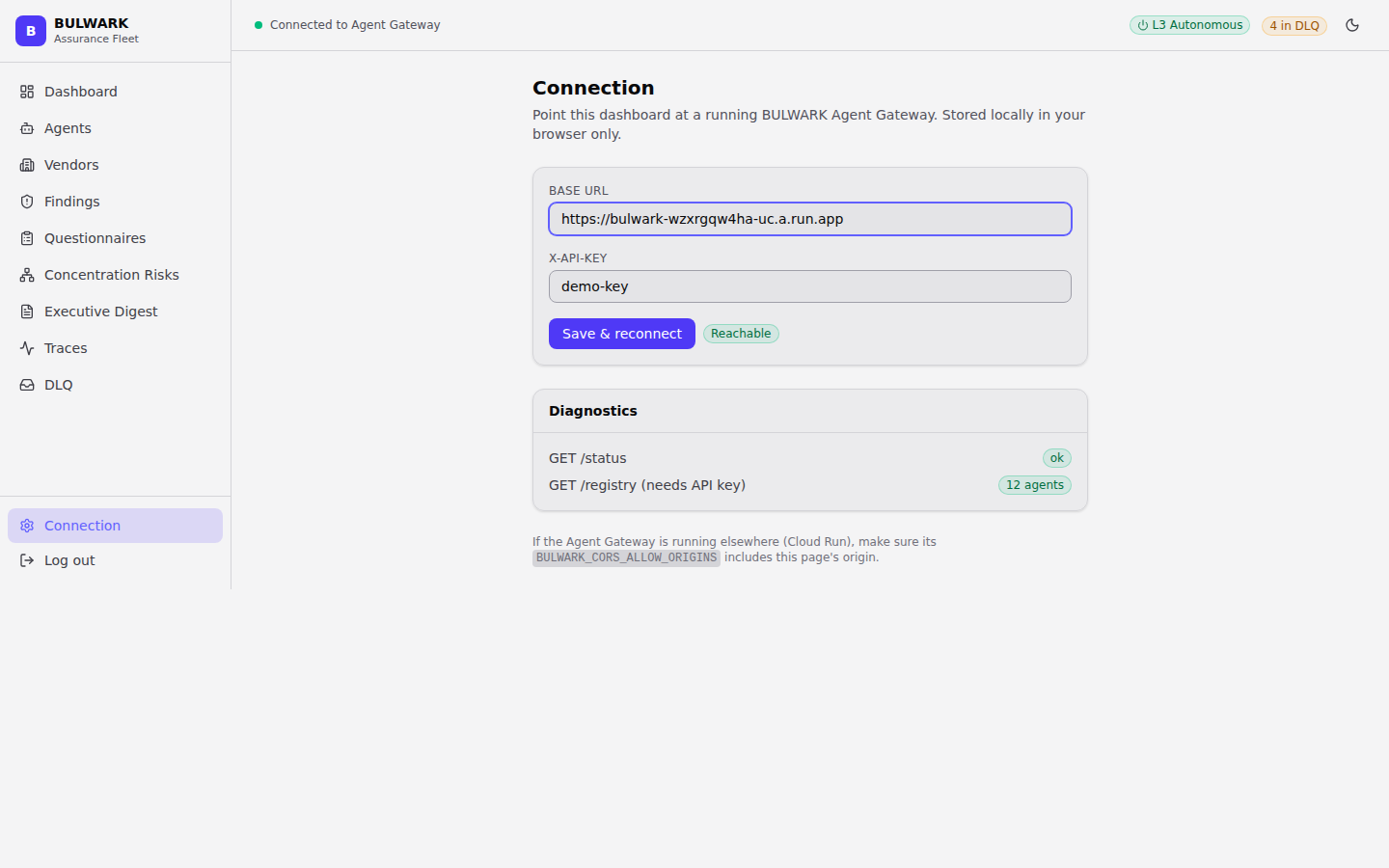
Check:
- GET /status diagnostic shows ok -- this is the app's own liveness
route (deliberately not /healthz; see src/bulwark/api/routes.py for
why Google Cloud Run's front-end infrastructure makes that path
unusable).
- GET /registry (needs API key) shows 12 agents -- if this fails
while /status succeeds, the API key is wrong, not the connection.
- Changing Base URL / X-API-Key here is stored in this browser's
localStorage only -- it doesn't change any server config, so it's
safe to point at a different environment to test without redeploying
anything.
Quick smoke test (no UI, for CI or a pre-demo check)¶
If you just need a fast pass/fail before walking into a demo, the
curl-only version of steps 2, 4, 13, and 18 above:
BASE=https://your-deployment-url

curl -s "$BASE/status"
# expect: {"status":"ok"}

curl -s -H 'X-API-Key: demo-key' "$BASE/registry" | python3 -m json.tool
# expect: 12 agents

curl -s -H 'X-API-Key: demo-key' "$BASE/vendors" | python3 -m json.tool
# expect: your seeded vendors, each with a name and tier

curl -s -H 'X-API-Key: demo-key' "$BASE/concentration-risks" | python3 -m json.tool
# expect: at least the AWS us-east-1 risk from seed_demo_data.py
If all four come back clean, the backend is healthy and the dashboard should load without the "Not connected" banner.